
In Text Citation In MS Word Doc | How to Add Reference In Word
- Sumra

- Dec 3, 2025
- 4 min read
Many students and researchers lose marks not because their research is weak, but because their citations are incorrect. You may have strong ideas, solid data, and a well-written paper, yet one small mistake in in-text citation or referencing can damage your academic credibility. The good news is that Microsoft Word itself offers powerful built-in features to manage in-text citations and footnotes without any extra tools.
This guide explains, step by step, how to add in-text citations and references in a Word document using only Microsoft Word in a simple and professional way.
Why In-Text Citation Matters in Academic Writing
When you prepare a thesis, research paper, essay, or report, you must give proper credit to the original authors. In-text citations show the reader where your information comes from, while footnotes and reference lists provide full source details.
Correct citation:
Prevents plagiarism
Strengthens your arguments
Builds academic trust
Helps examiners verify your sources
For beginners, understanding how in-text and out-of-text citations work can feel confusing. That is why learning the manual method in MS Word is extremely useful.
Generating Your Citation Before Using Word
Before inserting a citation into Word, you first need to generate it.
You can use:
Online citation generators
AI tools
Browser extensions that produce citations with one click
Academic tools like Google Scholar
Many tools also provide summaries, key sentences, and citation history, along with both in-text and full references. Once your citation is ready, simply copy it to your clipboard.
How to Insert In-Text Citation Using Footnotes in MS Word
Step 1: Place Your Cursor
Open your Microsoft Word document and place your cursor at the exact location where you want to insert the in-text citation.
Step 2: Open the References Tab
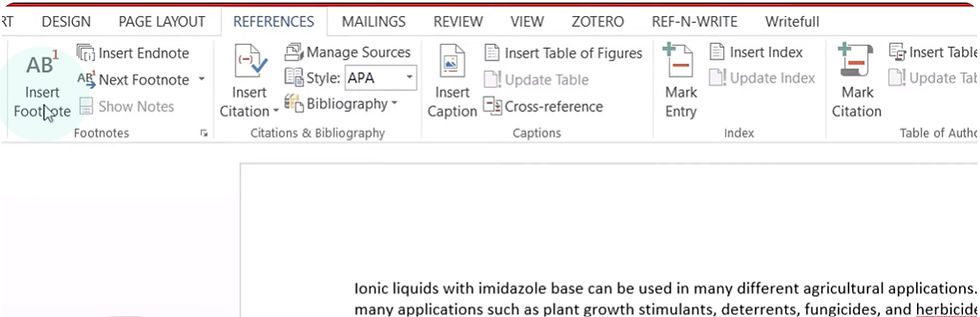
Click on the References tab from the Word menu bar. You will see several options related to citations, footnotes, and bibliography.

Step 3: Insert a Footnote
Click on Insert Footnote. Since this is your first citation, Word will automatically generate the number “1” in the text and take your cursor to the bottom of the page.
Step 4: Paste Your Citation
Now paste your copied full citation into the footnote area. You can format it according to your requirement, for example:
Font size: 10
Line spacing: 1
Required referencing style (APA, MLA, Chicago, etc.)
This completes your first in-text citation using a footnote.
How to Add a Second or Multiple Citations
To insert another reference:
Click at the point where you want the second citation
Go to References → Insert Footnote
Word will automatically number it as “2.”
Paste your second citation in the new footnote area
Apply your formatting
You can repeat this process for unlimited references throughout your document.
How to Edit or Replace an Existing Citation
If you need to change a reference:
You do not need to edit the in-text number
Simply scroll down to the corresponding footnote
Delete the old reference
Paste the new updated citation
When you place your cursor on any footnote number in the text, Word will instantly show the full reference at the bottom, making it easy to verify and edit.
What Happens If You Delete a Citation
If you delete a footnote citation from the document:
Word will automatically rearrange the numbering
The sequence will stay correct
For example, if you remove citation number 3 from 100 references, Word will automatically shift the remaining numbers without disturbing the order
This built-in automation makes MS Word very reliable for managing large research documents.
Creating a Bibliography from Footnotes
Once all your citations are added:
You can manually copy all footnote references
Paste them into a separate References or Bibliography section
Arrange them alphabetically
Format them according to your required style
Alternatively, you can also use the Insert Citation and Insert Bibliography options in Word by filling in source details manually.
Advantages of Using MS Word for In-Text Citation
No need for external reference management software
Easy for beginners
Automatic numbering and rearrangement
Quick editing and updating
Compatible with all academic formats
Works completely offline
This method is especially helpful for students who do not want to connect Word with tools like Zotero or Mendeley.
Using AI Tools Alongside MS Word
You can generate unlimited citations using AI tools and browser extensions and then insert them into MS Word using the footnote method explained above. This combination makes the research and writing process much faster and more accurate.
Conclusion
In-text citation is one of the most important skills in academic writing. Microsoft Word provides a simple yet powerful way to insert, manage, edit, and organize your citations without any external software.
By using the footnote feature correctly, you can handle even large research documents with hundreds of references smoothly and professionally. Once you master this technique, your academic writing becomes cleaner, more credible, and fully compliant with research standards.
If you want to learn more practical research skills, tools, and academic writing techniques, explore ScientificPakistan for step-by-step learning content that makes research simple and accessible for every student.
Book 1:1 Consultation with Dr Rizwana


Comments