
This Tool Converts NotebookLM Slides to Editable PowerPoint Slides for Research! (Easy Guide)

Research presentations have become much easier thanks to AI. Today, researchers can upload a thesis, research paper, proposal, or report and generate a professional slide deck within minutes. Tools like NotebookLM have completely changed how academic presentations are prepared.
However, there is one major problem.
NotebookLM can generate impressive presentations, but when you download them, editing the slides in Microsoft PowerPoint is often difficult. Text boxes may not be editable, graphics may be locked, and making simple changes, such as adding a university logo or modifying a slide, can become frustrating.
Fortunately, there is a solution.
By combining NotebookLM with PDNob, researchers can convert AI-generated presentations into editable PowerPoint files and customize every element according to their academic or professional requirements.
In this guide, we will walk through the complete process.
Step 1: Generate a Research Presentation Using NotebookLM
The first step is creating your presentation inside NotebookLM.
NotebookLM is an AI-powered research assistant developed by Google. Unlike many AI tools that search the internet for information, NotebookLM focuses on the documents you upload.
This means your presentation remains grounded in your own research sources.
Researchers can upload:
Research papers
Thesis chapters
Lecture notes
Reports and PDFs
Once the documents are uploaded, NotebookLM analyzes
6yzes them and allows you to interact with the content through AI-powered chat.
Instead of manually creating slides, you can simply ask NotebookLM to generate a presentation based on your uploaded documents.
The result is often surprisingly professional, with structured slides, relevant diagrams, visual elements, and concise academic content.

Why Researchers Like NotebookLM Presentations
The biggest advantage of NotebookLM presentations is that they are designed around academic communication rather than marketing.
For example, the generated slides usually contain:
Clean layouts that focus on key findings rather than excessive text. This makes presentations easier for audiences to follow during conferences and thesis defenses.
Consistent visual themes that maintain a professional appearance across all slides. Researchers do not need to spend hours adjusting colors, fonts, and formatting.
AI-generated diagrams and visual representations help explain complex concepts in a more understandable way.
For busy researchers, this can save several hours of presentation design work.
The Problem: NotebookLM Slides Are Not Fully Editable
Although NotebookLM allows you to download presentations as PowerPoint files, many users quickly discover a limitation.
When the presentation is opened in Microsoft PowerPoint:
Text may not be individually selectable, making it difficult to edit specific sections. Researchers often need to update titles, references, or explanations before presenting.
Images, diagrams, and graphical elements may behave like static objects rather than editable components. This restricts customization.
University branding, logos, headers, and footers cannot always be added easily because the original content structure is locked.
This becomes a serious issue when preparing presentations for supervisors, conferences, journals, or academic evaluations.
Step 2: Use PDNob to Make the Presentation Editable
This is where PDNob becomes useful.
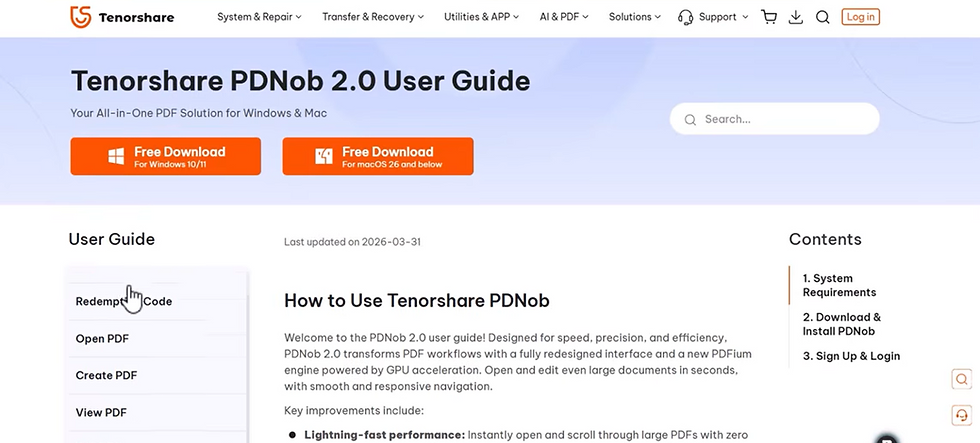
PDNob is a document editing tool that includes OCR (Optical Character Recognition) technology. OCR helps convert static content into editable content.
After downloading your NotebookLM presentation, you can import the file into PDNob and process it through the OCR feature.
The OCR engine analyzes the presentation and identifies text, diagrams, equations, and other elements that were previously locked.
As a result, researchers gain much greater control over their slides.
What Can You Edit After OCR Processing?
Once OCR has been applied, the presentation becomes much more flexible.
Researchers can:
Edit Text and Research Content
Instead of recreating slides from scratch, users can directly modify titles, descriptions, findings, and conclusions.
This is particularly useful when supervisors suggest revisions shortly before a presentation.
Add University Branding
Academic presentations often require institutional logos, department information, and official formatting.
After conversion, researchers can easily add headers, footers, and branding elements without redesigning the entire presentation.
Modify Graphics and Layouts
Sometimes AI-generated slides are excellent but need small adjustments.
Researchers may want to resize diagrams, remove unnecessary graphics, or reorganize content to fit presentation requirements.
The editable format makes these modifications much easier.
Step 3: Convert the Presentation into Editable PowerPoint
After editing the document inside PDNob, users can convert it into different formats.
One of the most valuable options is converting the file into a fully editable PowerPoint presentation.
This conversion allows researchers to:
Continue editing inside Microsoft PowerPoint using familiar tools and features. This avoids learning entirely new software.
Customize animations, transitions, and speaker notes according to conference or classroom requirements.
Share editable presentations with supervisors, collaborators, and research groups.
The conversion process significantly improves flexibility compared to using the original NotebookLM-generated file.

Additional Features That Researchers May Find Useful
Beyond presentation editing, PDNob offers several features that can support academic workflows.
AI-Powered Document Analysis
Researchers can interact with documents using AI and extract important information quickly.
This can help identify key findings, summarize sections, and understand lengthy documents without reading every page repeatedly.
PDF Conversion Tools
Research documents frequently need conversion between formats.
PDNob allows users to convert PDFs into Word documents, PowerPoint files, images, and other formats, making collaboration easier.
Header, Footer, and Watermark Management
Many academic institutions require specific formatting standards.
Researchers can add page numbers, institutional branding, watermarks, and custom headers without manually editing every slide.
Document Organization
Managing large numbers of research files can become difficult.
Features such as thumbnails, bookmarks, and page navigation help researchers stay organized when working with long documents.
Who Should Use This Workflow?
This combination of NotebookLM and PDNob is especially useful for:
PhD scholars who frequently prepare conference presentations and thesis defenses. The workflow reduces preparation time while maintaining professional quality.
University faculty members who need to prepare lecture slides from research papers and academic resources. AI-generated presentations can be customized quickly.
Research supervisors managing multiple students and projects. Editable AI-generated presentations simplify review and feedback processes.
Students and early-career researchers who want professional-looking presentations without spending hours on design.
Access the Tools
You can access NotebookLM through Google's platform and explore the presentation generation features for research documents.
For the presentation conversion workflow discussed in this article, access the tool here:
Tool Link: PDNob Access Link
Conclusion
AI is transforming how researchers create presentations. NotebookLM can generate high-quality academic slide decks in minutes, helping researchers focus more on content and less on design.
However, presentation generation is only part of the process. Researchers often need to edit, customize, and personalize slides before presenting them in front of supervisors, conference audiences, or academic committees.
By combining NotebookLM with PDNob's OCR and conversion capabilities, researchers can turn AI-generated presentations into fully editable PowerPoint files and make changes whenever needed.
This workflow saves time, improves flexibility, and helps create presentations that meet academic standards without requiring advanced design skills.
Looking for more AI tools, research hacks, and academic productivity guides?
Follow Scientific Pakistan for practical tutorials, research resources, and the latest tools helping researchers work smarter and publish better.


If you enjoy skill-based driving games, eggy car is worth a try. Every small mistake changes the outcome, which keeps each run interesting.